
Everything around your client work. In one space.
A branded portal for the files, requests, decisions and conversations that keep projects moving. Explore what your team manages and what your clients see.

Spaces & branding
Give every client relationship its own organized home, presented under your brand.
A home for each client or project.
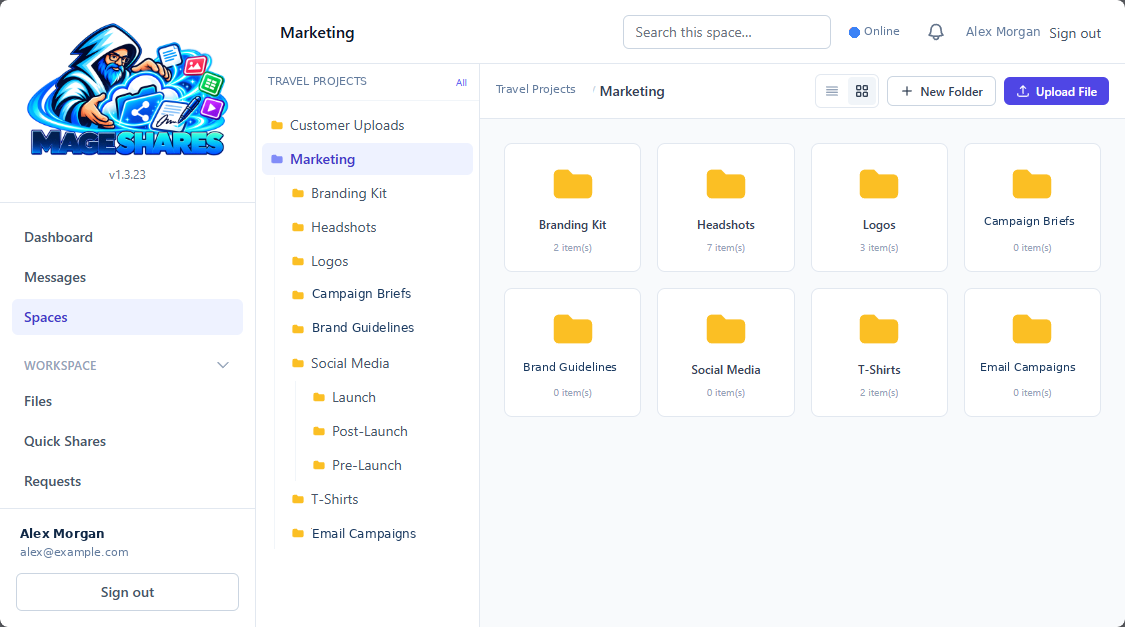
Keep files, requests, approvals, signatures, forms, people and activity together. Start with a space template, favorite frequently used spaces and mark finished work inactive. Every space has a Customer Uploads folder.
Your brand throughout the experience.
Set the portal name, logo and colors. Use space-level branding for welcome messages, support details and email footers.
Files
Keep deliverables organized, earlier versions within reach and every upload checked.
Organized files. Earlier versions within reach.
Work with nested folders, breadcrumbs, details or icon views and previews for supported images, PDFs and plain text. Uploading the same file name creates a new version, with previous versions available to download.
Choose the right upload route.
Team uploads and file request uploads support larger files than client drop-box uploads, form file fields and chat attachments. See the limits below.
Checked before sharing.
Every upload is scanned before preview or download; blocked executables and scripts are not accepted. A clean scan is a safeguard, not a guarantee that a file is harmless.
| Upload route | Limit |
|---|---|
| Team uploads | Up to 750 MB per file |
| File request uploads | Up to 750 MB per file |
| Client drop-box uploads | Up to 50 MB per file |
| Form file fields | Up to 50 MB per file |
| Chat attachments | 50 MB each, up to 10 per message |
Confirm current service limits when ordering.
Sharing
Send what clients and partners need, and stay in control of the link.
Send one file or a complete bundle.
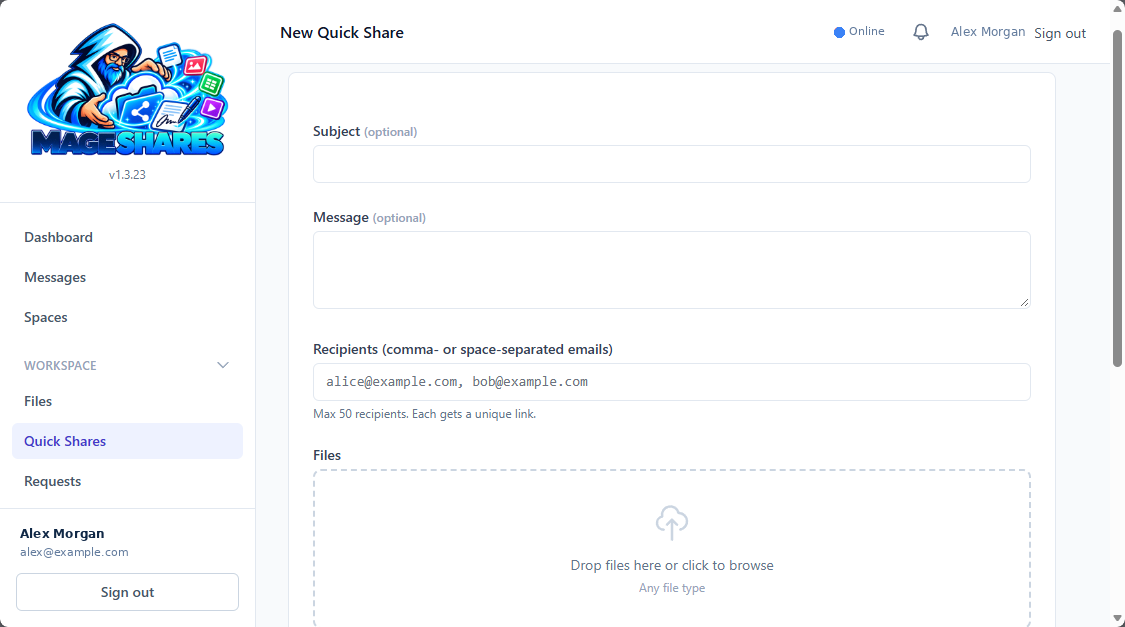
Single-file links can include passwords, expiry dates and download limits and can be revoked. Quick Shares send a bundle by email with a unique link for each recipient, opening and download tracking, and individual or ZIP downloads.
Know when it arrives.
Receive first-open and first-download notifications. Resend or revoke individual recipients’ links. Account owners control bundle and recipient limits. Public share recipients do not need a portal account.
Requests & forms
Replace vague follow-ups with specific asks and structured answers.
Ask for exactly what is missing.
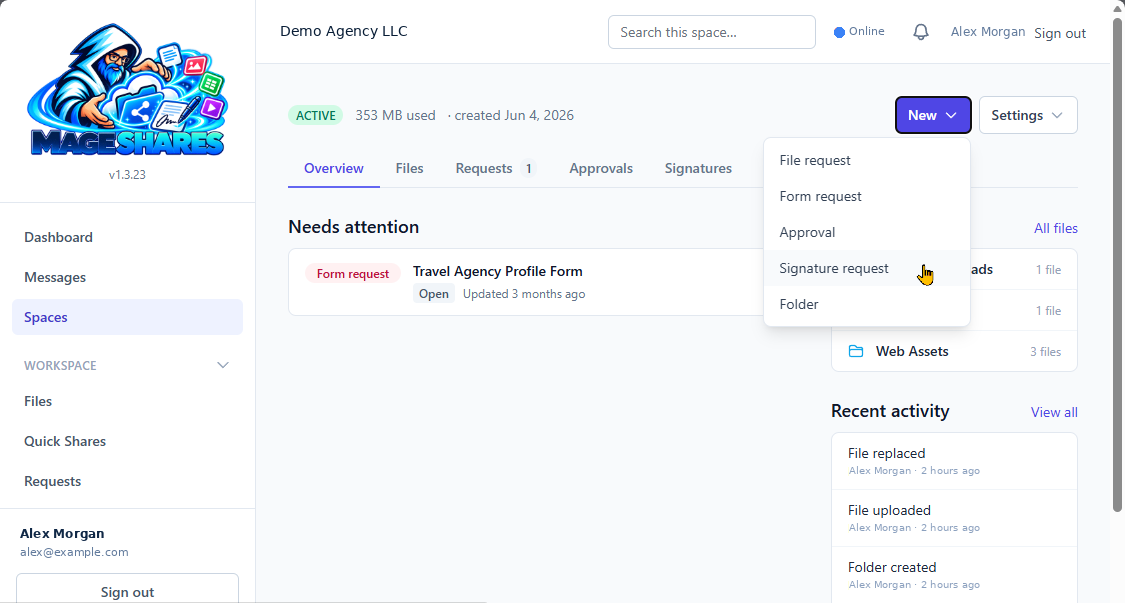
Build checklists with required and optional files, notes and due dates. Follow submissions, ask for revision and accept or close the request.
Turn intake into structured answers.
Build forms with text, contact, choice and file-upload fields. Start with Website, Branding, SEO, Content Request or Customer Feedback templates. Read submissions and export them to CSV. Due-dated form requests support draft saving; assignment availability depends on the request type and deployed configuration.
Approvals
Collect clear decisions and keep the feedback attached to the work.
Get the decision out of the email thread.
Request review of a file, web page or article. Assign reviewers, set a due date and collect Approve, Request Changes or Reject responses. Comments and review history keep feedback attached to the item. Save drafts, publish, re-send after revisions and archive completed reviews.
Signatures
Coordinate agreement signing and see where every request stands.
Keep signing progress visible.
Send contract text with sequential, parallel, single-signer or hybrid signing. Add participants and roles, set expiry, send reminders and track views, signatures and declines. Completed requests include an audit trail and Certificate of Completion. Save repeat setups as signature templates.
Electronic signatures for your workflow.
Suitability and legal requirements depend on the document and jurisdiction; no universal enforceability or certified digital-signature claim is made.
Messages
Keep conversations next to the work, with internal discussion kept internal.
Talk where the work lives.
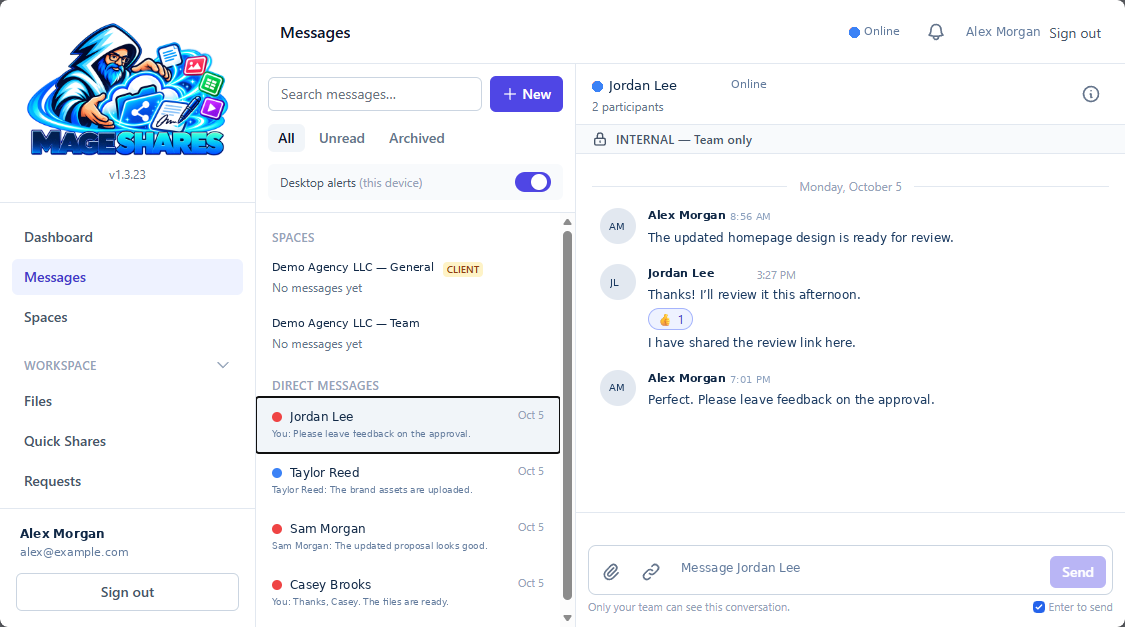
Each space has General for the team and clients, plus Team for internal conversation. Use direct messages, team groups and space conversations with replies, mentions, reactions and scanned attachments.
Keep visibility clear.
Client-visible conversations are labeled; internal conversations are kept separate. Clients can reply, while the team starts conversations. Choose notification preferences, search conversations and use browser desktop alerts. Owners choose message retention; client chat can be disabled per space.
Access & activity
Invite people with the right role and follow what is happening across spaces.
Invite people with purpose.
Account and space roles separate ownership, administration, internal participation and client access. Organize client companies, groups and memberships. Users see their assigned spaces; share-link access has its own controls.
Follow what needs attention.
Team dashboards show requests, approvals, signatures and storage. Client dashboards show a clear to-do list. Space activity and the owner’s audit log record events.
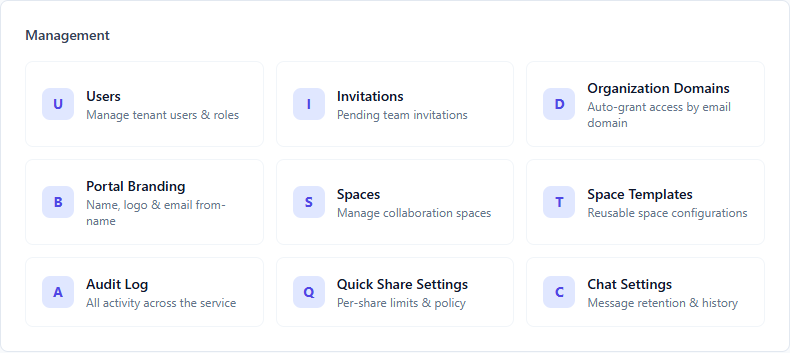
Folder permissions need careful setup. Folder grants add access; they are not a barrier that hides a folder from people who already belong to the space.
Recovery
A short window to undo a deleted file, with clear limits.
A second chance for deleted files.
Mage Jail holds deleted files and their versions for 5 days, with a countdown and restore action. Authorized admins can also remove them permanently before that period ends.
Know the boundary.
Deleted folders and their contents are removed immediately and cannot be restored. Files used for approvals or signature requests are protected from deletion. Mage Jail is not a backup or archival guarantee.
Mage Shares Sync for Windows
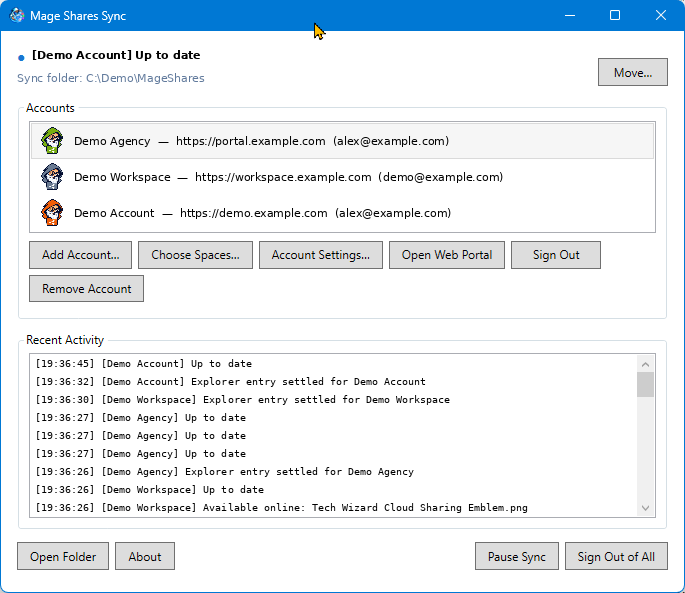
A free desktop app that puts your spaces in File Explorer, with files on demand, automatic syncing and a confirmation before local deletions remove shared work.

Bring your client work into one branded portal.
Start through Press Mage and make Mage Shares part of your client experience.